Packaging & publishing
Package
In the kit editor: mod.io → Create & Upload → Package Mods (the page itself is titled Package UGC). Pick your plugin, set What platform to Package for to Windows (it defaults to Linux, so you must change it), choose a Package Output Path and press Package. Only what is under your plugin's Content folder (plus its Config\Tags) is packaged.
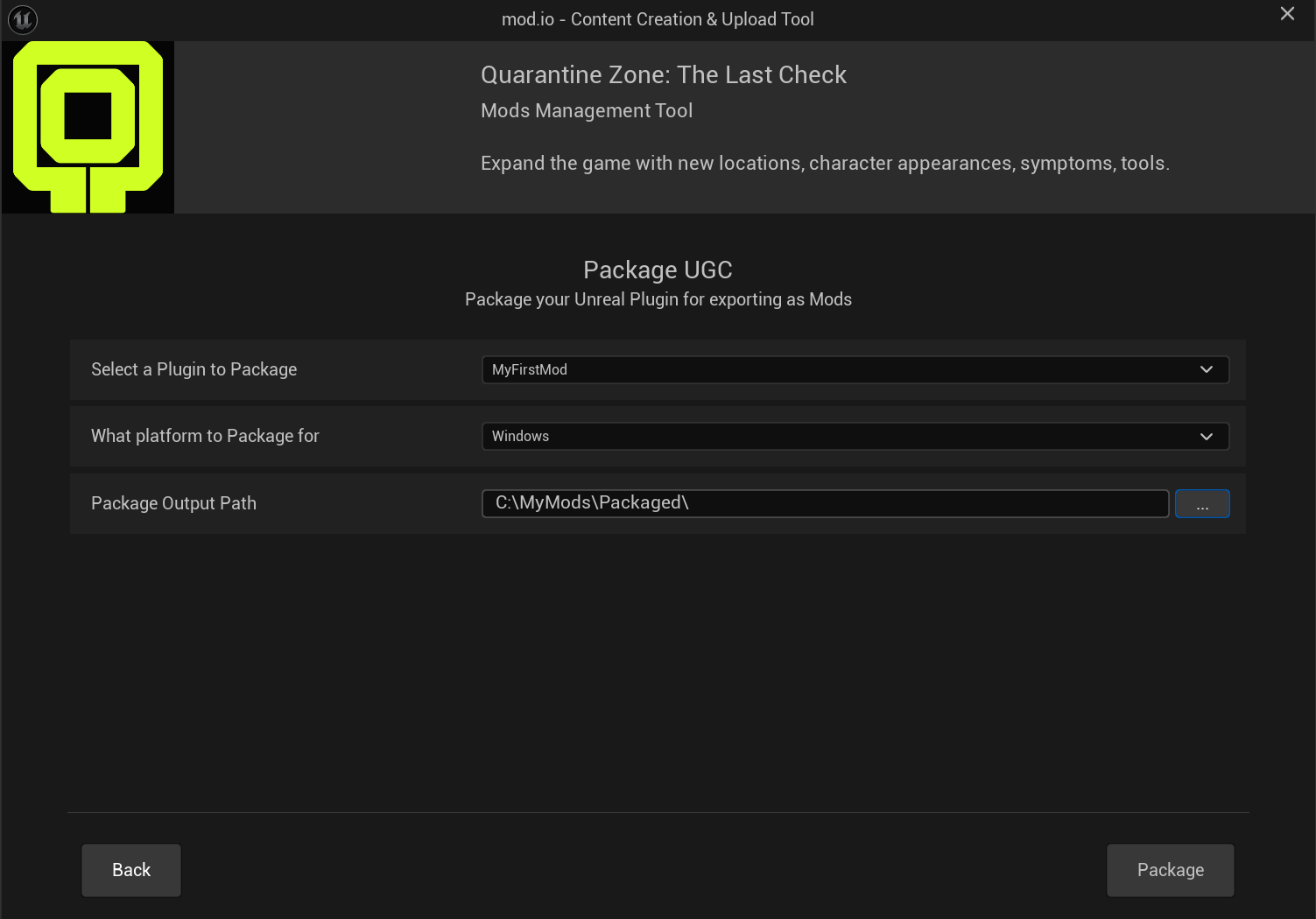
The Package UGC form: plugin, platform Windows, output path.
The result is written to <output folder>\<ModName>_Windows\:
<ModName>.upluginConfig\Tags\*.ini(if the mod has tags)Content\Paks\Windows\*.pak,.ucas,.utoc
Upload to mod.io
Zip the contents of the <ModName>_Windows folder so that the .uplugin is at the root of the zip, and upload the zip to mod.io. Mods are distributed only through mod.io: players get them by subscribing there. Do not distribute packaged mods any other way (Steam Workshop, other sites, zip files shared directly, manual installation by players).
Before you publish, test the mod locally. Tell your mod's users to subscribe and unsubscribe between campaigns (or at least between days), as described in Mods and save games.
Versioning
Every packaged mod carries "EngineVersion", "GameVersion" and "ExplicitlyLoaded": true in its .uplugin. The Package Mods tool stamps all of them automatically, including GameVersion 5, so do not touch them.
If you package manually via UAT, add them yourself. Current values:
"EngineVersion": "5.7.0-0+UE5-QZ",
"GameVersion": 5,
"ExplicitlyLoaded": true
Without ExplicitlyLoaded the mod breaks on the game's rescan cycle. The .uplugin must be UTF-8 without BOM. The mod also needs a UGC Metadata asset in its Content with Io Store Enabled = true (Create Mods adds it).
Why a mod might be rejected
The game refuses to load mods with a missing or too-old GameVersion instead of crashing. The player sees a notice in the main menu:
- "Mods need an update" when the refused mods only have a missing or old
GameVersion; - "Some mods were not loaded" otherwise.
After a breaking game update, re-package with the updated Creator Kit and re-upload the file; the mod.io page and its subscribers are kept. Mods installed or updated mid-session apply immediately, with no game restart.
Updates that only add content (new days, companies, DLC content) do not require modders to do anything. Breaking updates (a new engine version, or changed C++ data classes) do, and the release notes will say so. See the Changelog.
Mods that contact external servers
Mods may use the HTTP Blueprint and Json Blueprint Utilities nodes. Do not publish mods that use these nodes until the game update that enables them is out: older game builds cannot load such mods. The same rules apply to any external communication, including a companion program your mod talks to through files. You are responsible for the server or program and for the player data you send. Say so clearly on the mod page, and make the mod fail quietly when the external part is missing. A mod.io mod cannot install programs; anything players must download separately is outside the game's and mod.io's checks. See the FAQ.
Before you publish
- Remove test assets (test profiles, test skins).
- Use unique names and tags with your own prefix.
- List dependencies on mod.io; see Mods that use other mods.
- Check that your content does not change the official campaigns by accident: auto-included symptoms, auto-granted tools and staff skins apply everywhere.
- Remove debug keys.