Tutorial: skin mods
How to change the look of NPCs with a mod: both the checkpoint staff and the visitors.
Option A: replace checkpoint staff
The result of this option is, for example, a mod that turns all five checkpoint staff members into zombies.
- Start the Creator Kit editor with
Run_QZSim_Editor.bat. Do not openQZSim.uprojectby double-click: Windows will ask for an engine version and fail with "This project does not have any source code" (the kit deliberately has no C++ source). Create your mod with mod.io → Create & Upload → Create Mods. - In your mod's Content folder, create a QzStaticNPCSkinDataAsset (right-click → Miscellaneous → Data Asset → pick the class).
- Fill in the fields:
- NPCTag: who to replace.
NPC.Skin.Doc(Dr. Georgie),NPC.Skin.Usmon,NPC.Skin.UsmonWhite,NPC.Skin.Military(all soldiers at once),NPC.Skin.Scientist(the X-ray zone surgeon). - Mesh: a new skeletal mesh (optional; empty means only the materials change). The mesh must be rigged to a skeleton that the game can animate. The easiest choices are a mesh that already exists in the game (for example, a zombie mesh) or your own model fitted to the staff skeleton: see Your own model. A Mixamo model will not work "as is": it needs to be re-skinned in Blender onto that skeleton.
- Materials: material overrides per slot (slot number → material). You can reference any materials of the base game.
- NPCTag: who to replace.
- One asset replaces one NPC. To replace everyone, make an asset for each tag (there are five).
- Check it in Play In Editor right in the kit: mods from
QZSim\Mods\are mounted automatically. - Package with Package Mods and upload to mod.io, or test locally first: unpack the packaged mod into
<game folder>\QZSim\Modio\<ModName>\and start the game.
Story NPCs (Schultz, Torres, the Major, MrWhite) cannot be replaced.
Option B: replace or add visitor appearance
The appearance of generated visitors (clothing, hair, faces, bodies) is collected into pools by keys.
The key is the asset's Key Tag Data field; you cannot type it in the details panel.
-
Replace a base item: duplicate the base asset into your mod. The copy keeps the base Key Tag Data, so it replaces the base item everywhere, including when saves are restored. The Generator Data Source field does not matter for that.
-
Add a new item:
- Duplicate a base asset into your mod and rename it. The copy still holds the base key in Key Tag Data.
- Save the asset first. The Generate data key tag button does nothing on an unsaved new asset.
- Press Generate data key tag. Key Tag Data becomes
Generator.DataKey.<Layer>.<AssetName>. - The editor writes that tag line into the kit's
QZSim\Config\Tags\Generator.ini, not into your mod. Move the line into your mod'sConfig\Tags\<ModName>Tags.ini(template: Custom GameplayTags) and remove it from the kit file, then save. Package Mods then includes the ini. - A duplicated base asset may have Use Only Custom Profile ticked. Untick it if the item should appear on random visitors.
The new item joins the generation pool automatically; its Selection Weight controls how often it appears.

Before: the duplicate still holds the base key (...DA_Hats_Beer_helmet).

After: Key Tag Data is Generator.DataKey.Accessory.Hat.DA_Hats_MyFirstHat.
See also Visitor appearance.
Your own model
Variant 1: reuse a game mesh. Create a QzStaticNPCSkinDataAsset, set the character tag (NPC.Skin.Doc, NPC.Skin.Military ...), pick a suitable mesh that already exists in the game in the Mesh field (for example, a zombie mesh), and override the materials if you want. No export is needed.
Variant 2: your own model. The checkpoint staff meshes are regular, exportable assets in the Creator Kit, so you can take the staff skeleton from them.
- In the Content Browser find the staff mesh you want to replace, under
Art/Characters/PA_Collection/Assets/Characters/Mesh/: doctorD2_Zheka, soldierD4_Mirbek, Usmon / Usmon White / surgeonD1_Usmon(alsoD3_Bolat). - Right-click it → Asset Actions → Export... → FBX. The FBX contains the mesh and its skeleton (
D1_Usmon_Skeleton; all staff share it). - In Blender import that FBX, model or fit your character to that armature (keep the armature and bone names as they are), skin it and export FBX.
- In the kit, import the FBX into your mod folder. In the Import Content dialog, on the Skeletal Meshes tab, set Skeleton =
D1_Usmon_Skeleton, and do not import animations.
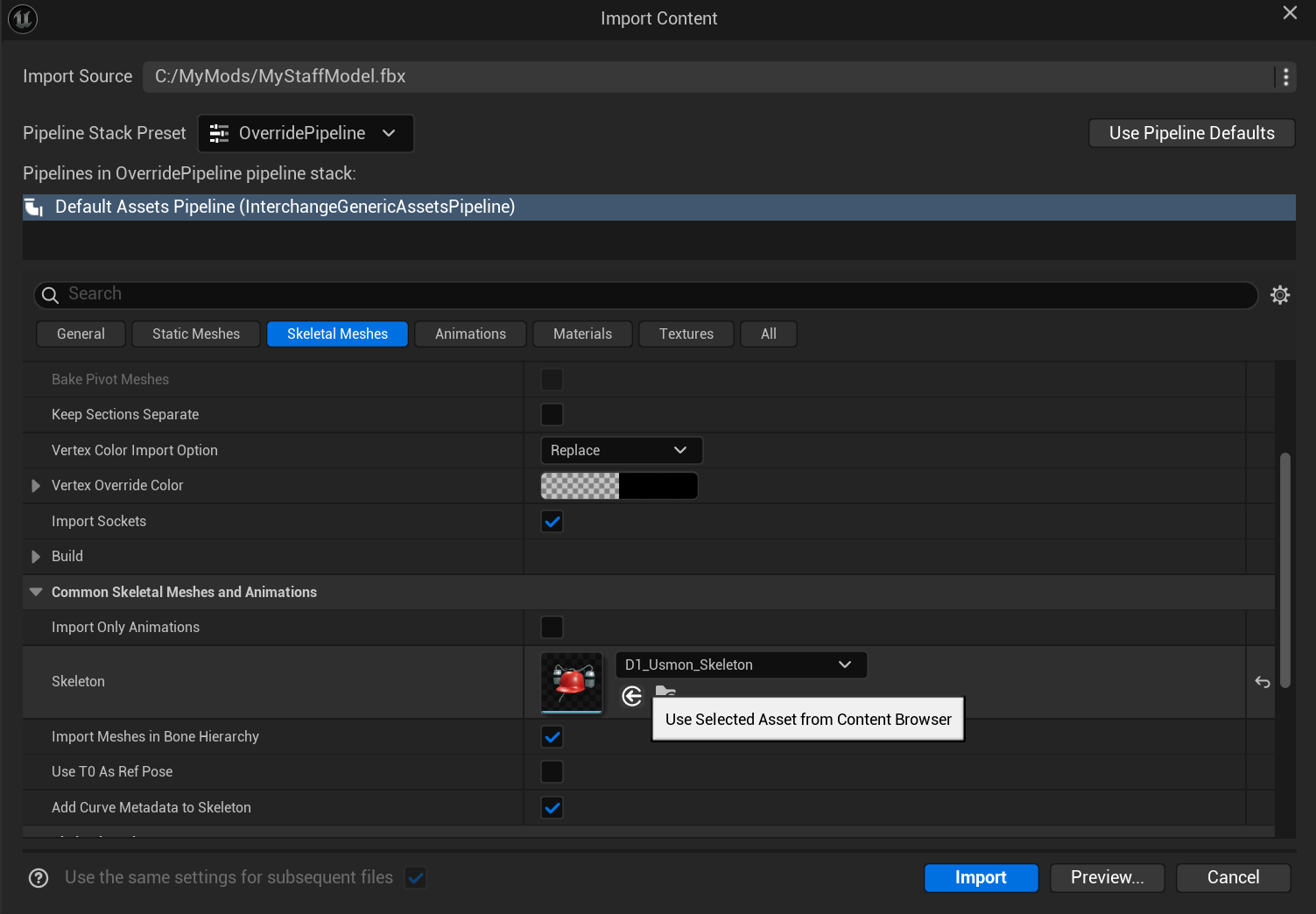
The Import Content dialog, Skeletal Meshes tab: Skeleton = D1_Usmon_Skeleton.
- Create a
QzStaticNPCSkinDataAsset, pick the NPCTag, and set Mesh to your imported mesh.
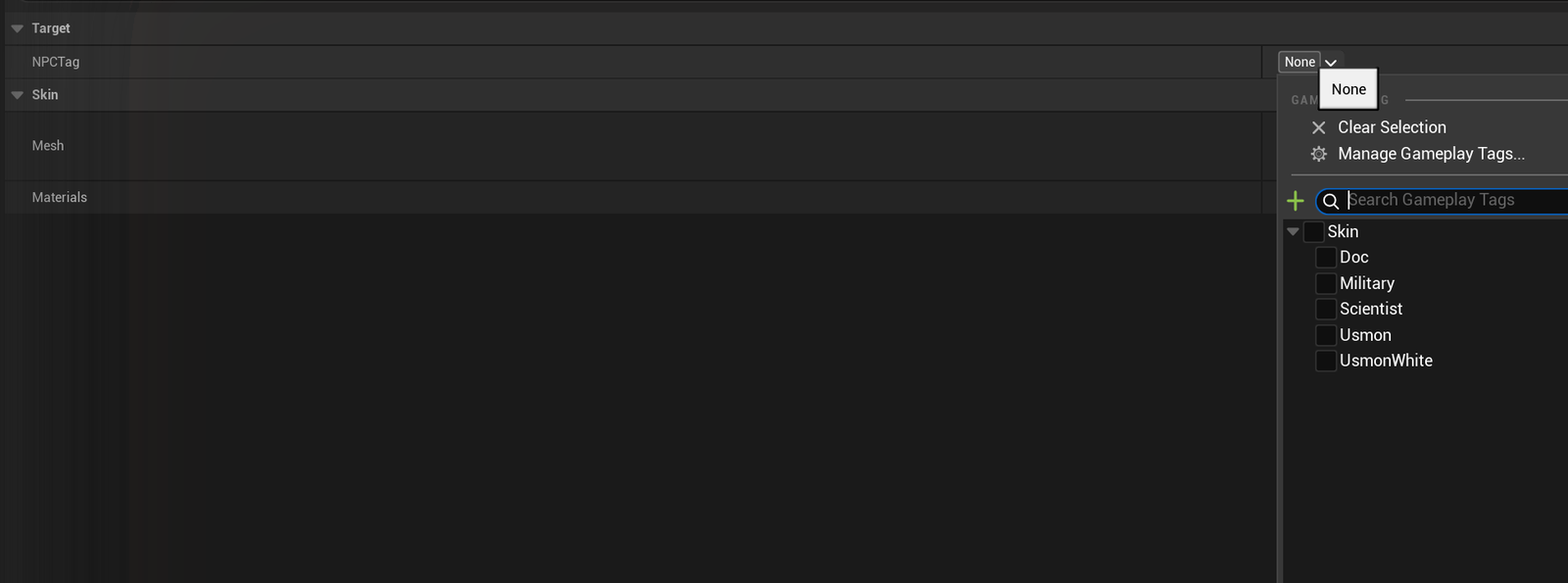
The NPCTag picker: Doc, Military, Scientist, Usmon, UsmonWhite.

A filled skin asset: NPCTag = NPC.Skin.Doc, Mesh = a custom skeletal mesh.
- Test in Play In Editor, then package and publish.
Only the staff characters can be exported; other third-party (cooked) assets still cannot, and Migrate stays disabled.
Mods and saves
- A save created without mods works fine after a mod is installed: new content is picked up from the next day, and replacements are applied to already-saved NPCs too.
- Removing a mod does NOT break the slot: mod content is stored in the save by tags and simply drops out when the mod is missing (mod symptoms vanish from generated NPCs, tools disappear from the wheel, replacements revert to the base).
- Recommendation for players: subscribe and unsubscribe between campaigns, or at least between days, not mid-day.
Common pitfalls
- Uplugin: the Package Mods tool sets
EngineVersionandGameVersionby itself, so do not edit them by hand. Without them (or with an old GameVersion) the game rejects the mod: the player sees "Mods need an update" in the menu (or "Some mods were not loaded" if the reason is not the version). - You updated the mod but the game still shows the old one: installing or updating a mod mid-session applies immediately, but content already loaded into the current level is not swapped in place. Return to the main menu and re-enter the campaign. If it is still stale, restart the game.
- The mesh stands in a "T/A" pose: your mesh's skeleton is incompatible with the character's animation Blueprint. Use a mesh on the staff skeleton
D1_Usmon_Skeleton(import it with that skeleton selected): see Your own model. - Skin tags are exclusive across mods: only one mod can own a given
NPC.Skin.*tag. If two mods set the same tag, only one applies, and which one is not defined. - A skin applies in every campaign, including the official ones. Remove test skins before you publish.
- Advanced: a mesh's Post Process Anim Blueprint must pass the pose through, otherwise the NPC stands in a T-pose.
- Custom GameplayTags (for new symptoms, tools, etc.) are declared in
Config\Tags\<ModName>Tags.iniinside the mod. They are picked up and packaged automatically.